
Toqan Agent
Here we explain how Toqan works, how to use the API and how to connect custom integrations. Learn about all out-of-the-box capabilities and see examples of how to use Toqan.
Introduction
Toqan is an LLM agent-building Platform that allows you to build and scale cutting-edge LLM agents in no time!
What is Toqan API?
Through Toqan API, you get access to Toqan’s technology and infrastructure to create and configure your own LLM Agent. Toqan provides you with powerful, out-of-the-box features and flexibility.
Key Features
Toqan is an LLM agent Agents that comes with powerful tools out of the box Tool Guide and allows you to build, test, and scale your own agents in minutes. Toqan agents can plan, iterate, make decisions, and complete multi-step actions to fulfill your task.
Toqan has access to:
- Search the web, access URLs
- Summarize, translate, or extract text from documents (OCR, and answer questions using documents
- Transcribe audio and video files
- Write and execute code
- Generate images
- Custom tools, integrate to any system you want Custom tools
Use Cases
Here is a list of example agent use cases to spark imagination.
-
Toqan for automation Customer support automation, where any incoming request is either labeled and answered based on an existing knowledge base or escalated by creating a ticket for the relevant team.
-
Toqan for suppliers A Toqan agent that is shared with suppliers to help answer frequent queries, advise on postings, and help generate operational insights shared through your own app or platform.
-
Toqan for data enrichment An agent that reviews a business categorizes and comments on a new vendor based on a shared URL. Additional information then gets stored in your system.
-
Toqan for developer productivity An agent that does PR reviews based on shared rules, best practices, and knowledge about the code base.
Getting started!
To create your first agent, follow these 5 steps:
- Go to Toqan web work.toqan.ai
- Create a Space
- Configure your agent
- Generate an API key
- Start your first conversation API Documentation
Happy building! 🚀
Agents
LLM Agents (short: agents) are AI systems that use large language models (LLMs) as their core to perform tasks autonomously, interact with tools (APIs, data), make decisions, and execute actions.
The Agent Loop
Each user message triggers the agent to start on solving the given request. To do so, the agent acts in loops. Every loop the agent decides wether to call a tool, reason with itself, or respond to the user. After each step, the agent decides (loops) again, until the agent has successfully responded to the user with its final message.
To demonstrate this, here is a walkthrough of how Toqan answers a user request.
System prompt
The system prompt is critical to the behavior and performance of your agent. Thoroughly test and iterate over it until you reach the desired result.
Hot tip: Ask Toqan to provide feedback and improvement suggestions for your system prompt. Below you find best practices and guidelines for writing effective system prompts.
General Principles
- Give Clear and Explicit Instructions: Provide detailed instructions on what you want the model to achieve. Think of it like writing to a colleague who can't reply for more instructions. Would you be able to complete the task with these instructions alone?
- Be Clear and Explicit:
- Avoid subjective instructions.
- Give detailed descriptions to limit interpretation. For classification, define each class clearly. For data extraction, specify each data type.
- Focus on "what to do" instead of "what not to do."
- Avoid giving vague task descriptions followed by examples; state exactly what the model should do.
- Give Context: Explain why the task needs to be completed. This aids in understanding the data. For example, clarifying that the model acts as an intent classifier for the Prosus AI Assistant on Slack can prevent confusion when processing relevant messages.
Structure of a Prompt
- Context and Task Definition
- Clarifying Instructions (Tested on test cases)
- Input and Output Format (Include reasoning if necessary)
- Describe input format if complex.
- Differentiate inputs to improve logging.
Checklist
-
Avoid generic statements; be specific.
-
Use commands, not questions.
-
Provide clear explanations, avoiding jargon.
-
Use clear language with correct grammar.
-
Emphasize positive instructions.
-
Give background information and clarify model expectations.
-
Explain examples.
-
Provide step-by-step instructions for complex tasks.
-
Indicate expected output format, such as concluding with JSON syntax for consistency.
Models
We chose the model that performs best for the agent. For our choice, we prioritize tool call accuracy and tool call quality. In the future, we will enable an additional selection of model choices.
Find benchmarks for model selection (here ), and for tool calls specifically (here ).
Endpoints
Currently you can send user messages through /create\_conversation and /continue\_conversation.
Currently, neither endpoint streams Toqan's response. Instead you'll need to poll /find\_tool\_calls until Toqan has responded.
Tools
Tools are ways for your Toqan agent to interact with the outside world. They allow Toqan to e.g., search the web or create a Jira ticket based on a user request.
Tools allow Toqan to 1). complete tasks it otherwise couldn't, like summarizing large files, or doing math (see example below) or 2). take an action in a separate system, such as update information on a vendor in Salesforce with an API call, or search your Confluence platform.
Check out Custom Tools to learn how to build custom tools for your Toqan agent.
Tool Call Examples
Code executor example 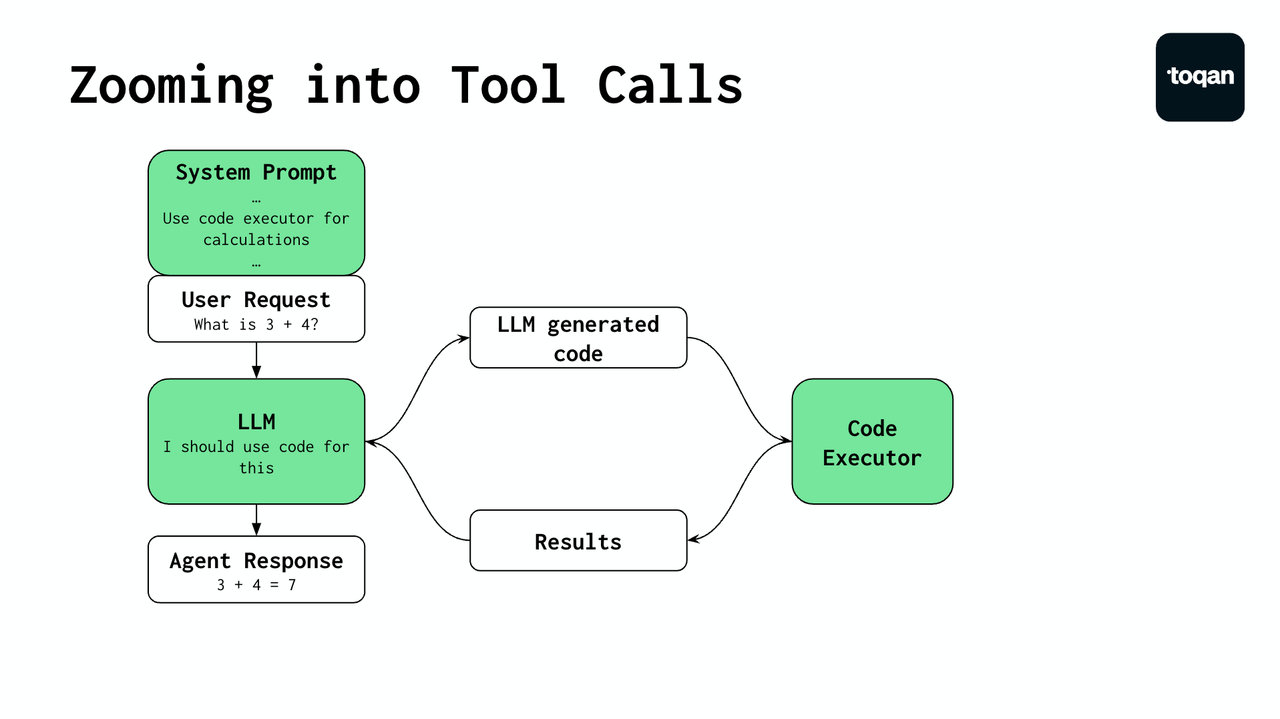
In this case, Toqan receives a request to calculate 3+4. LLMs are notoriously bad at math, so the system prompt instructs Toqan to use the code executor to complete calculations.
Toqan writes the code to calculate 3+4 and sends a tool request (including the code as parameter) to the code executor tool (see example tool in and outputs below).
The code executor runs the code and returns the result to Toqan. Toqan now has the answer and generates the final user response.
Example Tool Input and Output
To call a tool, Toqan fills in a set of parameters. These parameters are used to build up the request body for the tool call.
If a user were to ask Toqan for a square image of a cute cat in a garden with more details, Toqan might fill in the following request:
text_prompt: "A cute cat sitting in a garden with flowers"
aspect_ratiopt: "1:1"
These parameters have been defined for the tool. Toqan knows how and when to use the image generation tool because of the tool description and instructions.
The full tool call resolution would look like this:
[
  {
    "name": "text_to_image",
    "parameters": "{\"text_prompt\":\"A cute cat sitting in a garden with flowers\",\"aspect_ratio\":\"1:1\"}",
    "result_content": "Image generated successfully",
    "result_files": [
      {
        "file_name": "image_20250211071314_2vc.png"
      }
    ],
    "completed_at": "2025-02-11T07:13:15.316Z",
    "error": "",
    "state": "done"
  }
]
The tool (in this case an image generation API) would generate and return the image as a file. The file would be shared with Toqan, and the agent can share the file with the user in its next loop.
Available Tools Only for the API
| Tool Name | Description |
|---|---|
| url_resolver | Retrieves detailed content from specified URLs. Ideal for extracting full webpage content from URLs provided by the Web Search tool or other sources. |
| web_search | Performs a search on the web using Google Custom Search to retrieve structured data or summaries based on specific queries. |
| transcription | Transcribes audio and video files into text. |
| code_executor | This tool executes the code and returns the result. Used for math, data analysis, and more. |
| text_to_image | This tool generates an image from the given text. |
| ocr | This tool generates an image from the given text. |
| summarization | This tool is used to summarize files (e.g., articles, pdfs, docx, etc.) |
| question_answering | This tool is used to answer questions based on text files (e.g., articles, pdfs, docx, etc.) |
| translation | This tool is used to translate full text files (e.g,. articles, pdfs, docx, etc.) |
| Custom tool | A feature allowing you to build additional capabilities for Toqan, like connecting it to your systems. For examples and guidelines, check: Custom Tools |
Custom Tools
Custom tools allow you to add additional capabilities to your Toqan Agent. Common examples include connections to Google Drive, GitHub, Confluence, or Jira, but connections can also include your own internal systems, as well as new abilities you develop for your agent.
Custom Tool Introduction
In this introduction, we create a create_jira_ticket tool for Toqan.
Each custom tool allows Toqan to take an action, such as searching an internal RAG knowledge base. You can add up to 10 custom tools to your Toqan.
How to set up a custom tool
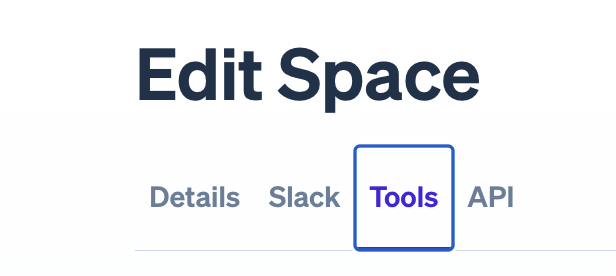
- To create a custom tool for your Toqan, open the Tools tab in your Toqan Space
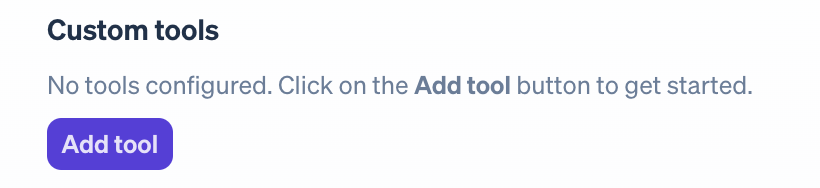
- Click on create custom tool.
- And start creating the custom tool connection.
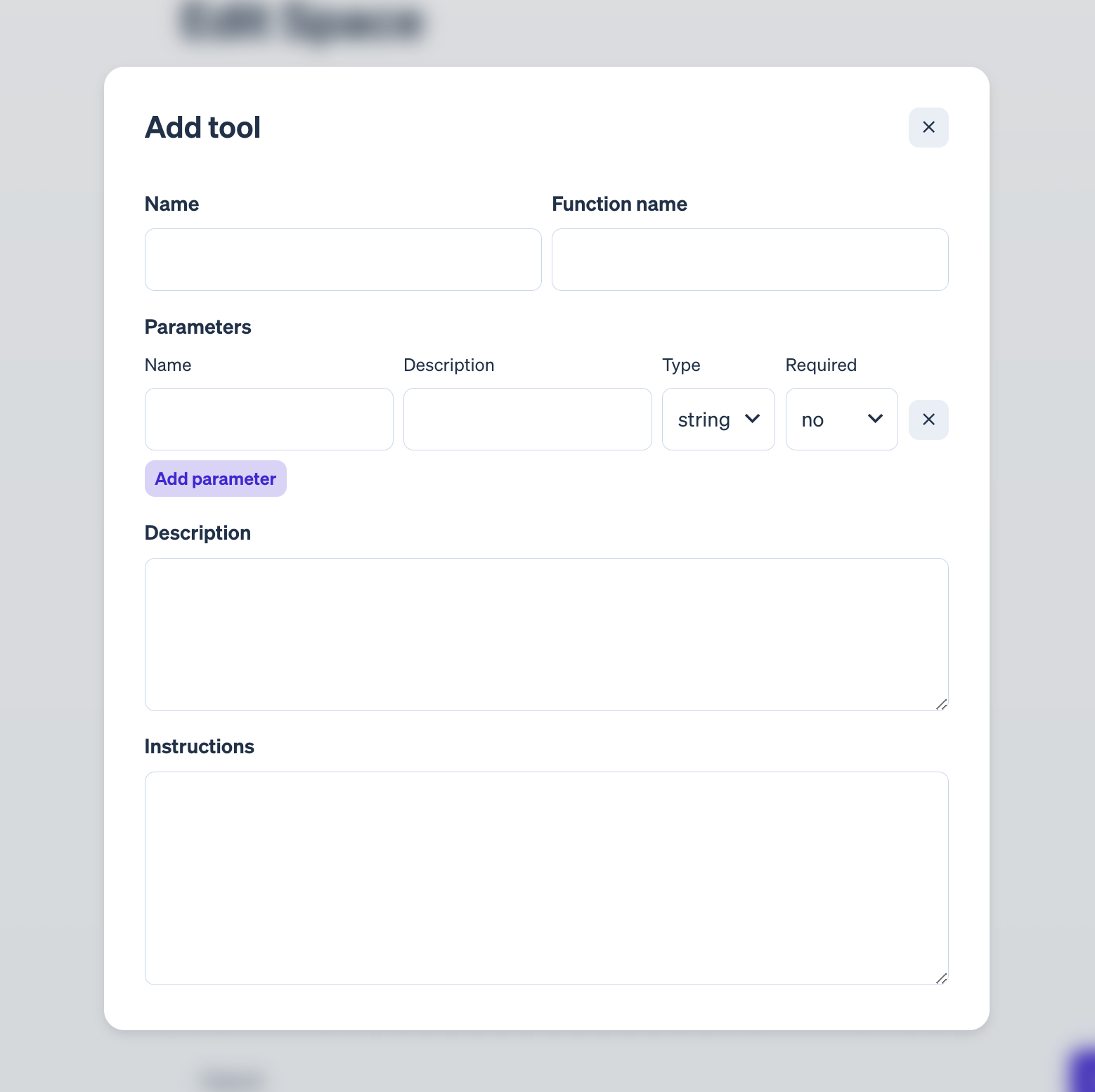
Explanation of Custom Tool Form
- Display Name Name the tool so that you and others can recognize it. Toqan will not see this tool name. Must be unique. Should be descriptive of what Toqan can use the tool for. E.g., Create Jira Ticket.
- Function Name The function name is visible to Toqan, requires underscores and lowercase, no special characters. Must be unique. Must be descriptive of what Toqan can use the tool for. E.g.,
create_jira_ticket. - Parameters Parameters are inputs provided by Toqan to call the tool. For example, to use the
web_searchtool, Toqan needs to fill in the query parameter. You can add one or more parameters depending on the details needed for the request. Both field types have a 150 character limit. Parameter Name: The parameter name helps Toqan understand what to fill in. Parameter Description: The parameter description helps Toqan understand more details, such as possible values or additional guidelines for the parameter. See Examples:- Web Search
- Name:
query - Description: The query for which to search the web.
- Name:
- Jira Ticket
- Name:
summary - Description: This is the summary of the new ticket
- Name:
description - Description: This is the extensive description of the new task Parameters in other fields: By using
$(parameter_name)you can reuse parameter inputs in the request URL or the request body.
- Name:
- Web Search
- Descriptions A short description of what the tool does. This description should contain the capabilities of the tool and what Toqan should expect as a result of calling the tool.
- Example: For the
web_searchtool, Toqan’s tool description is the following:- Performs a search on the web using Google Custom Search to retrieve structured data or summaries based on specific queries.
- Instructions Add additional instructions for Toqan on how and when to use this tool. This field helps Toqan use the tool correctly when needed. Example: For the
web_searchtool, Toqan’s tool instructions are the following:- Break down complex search queries into smaller parts to find relevant information efficiently.
- Start by generating a plan or conducting an exploratory search to better understand the user's request.
- Headers Headers are used as for any other API. Authentication is currently only done through headers.
How to do Authentication
Currently, Toqan only authenticates tool requests through the header. In the future, this will be able via OAuth.
Testing and debugging
Currently, the best way to test Toqan tools is to talk to the Space. This will get its own feature set in the near future.
Whitelisting Custom Tool Calls
Our IP addresses for tool calls
18.202.206.254
52.31.67.186
34.253.128.27
Toqanclaw Harness IP addressess:
99.81.119.54
52.31.211.187
Custom Tool Templates & Examples
Google Drive Tools
Jira Ticket Creation
Limits
| Element | Limitations |
|---|---|
| Rate Limit | Per API key combined start/continue conversation: 180/min combined other endpoints: 900/min Per Workspace combined start/continue conversation: 3000/min combined other endpoints: 15000/min For a higher limit, please contact: [email protected] |
| Conversation Length | Conversations can be continued as needed. After a certain length previous context gets summarized, but this will not be noticable for agent use. |
| Conversation Duration | Conversations will be open for at least one month. |
| Max Input Length | |
| Max Output Length |
|
| Max File Sizes | |
| Compatible files Can be extended by adding new tools for additional file types |
|
Updated about 1 month ago